Universal USB Installer (UUI) is a free bootable USB creation tool from Pendrive Linux. The classic UUI release runs on Windows and can prepare USB drives for supported Linux live systems, Windows installation media, and recovery or diagnostic tools. UUI Py is the newer Python-based version with native Windows and Linux builds. Supported images and features vary by version, so check the current documentation before choosing a tool or ISO. Back up the USB drive first: preparing or formatting it can erase existing data.
Quick answer: Choose classic UUI for Windows or UUI Py for native Windows and Linux support, then download the build from the official Pendrive Linux website. Select a supported operating system or utility, choose its ISO and the correct USB drive, and follow the tool's preparation steps. Some operations format or repartition the selected drive and can erase its contents, so verify the target drive and back up files first. Persistence and virtual-machine test booting depend on the version and supported image.
Universal USB Installer (UUI) | USB Boot Maker
UUI can help create bootable USB media for testing Linux, installing Windows, or preparing recovery and diagnostic tools. Boot compatibility depends on the selected image, the USB layout, and the target computer's BIOS/UEFI settings. Current classic UUI releases use the Ventoy bootloader, but that does not guarantee every ISO will boot on every system. Running a live operating system from USB can reduce the need to install it on the internal drive, but it does not protect the internal drive if you later choose an installation or disk-management option.
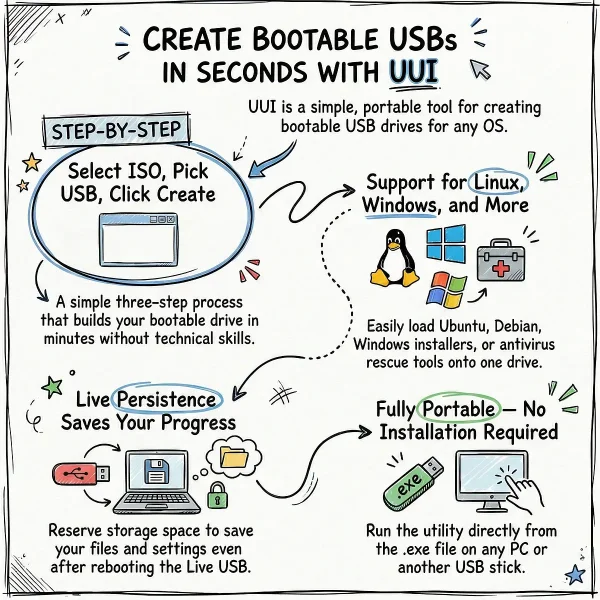
The tool is fully portable: no installation is required. Just run the executable from wherever you extracted it, including from another USB drive.
The History Behind Pendrive Linux and Universal USB Installer
Long before booting an operating system from a USB flash drive became commonplace, Pendrive Linux was exploring ways to make it practical for everyday computer users. The project began in 2006 with a focus on making it easier to boot and run Linux from removable USB media.
At the time, creating a bootable Linux USB drive was considerably more complicated than it is today. Users often had to work with command line tools, manually configure boot files, or follow complicated instructions that were intimidating to someone who simply wanted to try Linux.
Pendrive Linux helped change that by developing straightforward tutorials and tools that simplified the process. The goal was not just to help experienced Linux users, but to make USB booting accessible to people using Windows who had never used Linux before.
Universal USB Installer Made Linux Easier to Try
One of the most important tools to emerge from the project was Universal USB Installer (UUI). Originally designed as a simple Windows NSIS code based bootable USB creation tool, UUI allowed users to select a Linux distribution, choose a USB flash drive, and create bootable media without having to manually configure the drive from the command line.
This was significant because it gave Windows users a relatively simple way to try Linux without installing it to their computer's hard drive. A user could create a Linux Live USB drive, restart the computer, boot from the flash drive, and explore Linux while leaving the existing Windows installation intact.
For many people, this provided their first practical introduction to Linux.
Instead of asking a Windows user to replace their operating system or create a complicated dual-boot configuration, a USB flash drive offered a much less intimidating way to experiment. Linux could be tested, explored, and used directly from removable media before making any decision about installing it permanently.
Pioneering the USB Linux Experience
Pendrive Linux was part of the early movement that helped establish the idea of using a USB flash drive as more than simple file storage. The project focused on turning the flash drive into a portable operating system environment that could boot on compatible computers. Universal USB Installer extended that concept by putting much of the complicated preparation process behind a graphical Windows interface.
Over time, the software evolved beyond simply creating Linux Live USB drives. Support expanded to include additional Linux distributions, system utilities, antivirus rescue environments, Windows installation media, persistence options, and other bootable tools.
The approach helped establish a simple concept that remains useful today:
Download an ISO, put it on a USB drive, boot the computer from USB, and try the operating system before installing it.
That workflow is now familiar to millions of computer users, but it was considerably less accessible when USB booting was still a relatively new concept.
From Linux Live USBs to Modern Bootable USB Toolkits
The original goal of making Linux easy to try eventually evolved into something much broader. USB drives became capable of carrying entire collections of operating systems, installers, recovery environments, diagnostic utilities, and other bootable tools.
Pendrive Linux developed additional software such as YUMI, which made it possible to place multiple bootable operating systems and utilities on a single USB drive. Universal USB Installer also continued to evolve beyond its original Linux focused purpose.
Today, these tools can be used for far more than experimenting with Linux. A single USB drive can contain Windows installers, Linux distributions, recovery environments, diagnostic utilities, antivirus rescue systems, and other bootable software.
The technology has changed considerably since the early days of USB booting, but the underlying idea remains the same: make powerful operating systems and tools accessible from a USB drive without requiring a permanent installation.
Helping Windows Users Discover Linux
Perhaps the most important part of this history is the accessibility it provided.
For a Windows user who had never experienced Linux, installing an unfamiliar operating system onto a hard drive could be a major commitment. A bootable USB drive changed that equation.
With a Live Linux USB, users could experiment with the desktop, browse the web, explore applications, test hardware compatibility, and learn how Linux worked. If they decided it was not for them, they could simply restart the computer and return to Windows.
In that sense, bootable USB technology became more than a technical convenience. It became a way of lowering the barrier between Windows and Linux.
Universal USB Installer played an important role in that transition by giving Windows users a straightforward graphical method for creating the USB media needed to explore Linux. The tool was eventually even listed by Canonical as an officially suggested method for creating an Ubuntu bootable USB drive.
A Legacy That Continues Today
The original mission of making USB booting easier continues to shape the development of Universal USB Installer and the newer tools from Pendrive Linux.
Modern versions support much more than the original Linux Live USB workflow, including multiple operating systems, Windows installation media, recovery environments, persistence, and other bootable utilities. The newer UUI Py also brings the Universal USB Installer concept to a cross platform Python based bootable USB creation tool that runs natively on Windows and Linux.
What began as an effort to make Linux bootable from a USB flash drive has therefore evolved into a broader platform for creating portable bootable computing environments.
For users who remember the early days of Linux Live USBs, it is a continuation of the same basic idea that started with Pendrive Linux in 2006: make USB booting simple enough that anyone can use it.
Top Features of Universal USB Installer (UUI)
- Extensive Linux Distribution Support: Create a bootable Linux USB drive for distros including Ubuntu, Fedora, Kali, Debian, Linux Mint, Arch, Manjaro, and hundreds more. Also supports multiboot ISO tools and system repair utilities.
- Simple Three-Step Interface: Even beginners can turn an ISO into a bootable USB drive in just minutes using UUI's straightforward selection process.
- Built in Download Links: The tool provides official download links for Linux ISOs, antivirus rescue disks, and utilities so you can get the files you need directly from trusted sources.
- Integrated USB Formatting: Includes a built-in formatting option using the FAT32 Formatter to prepare your drive to boot from USB, even if it is larger than 32 GB. exFAT is the default filesystem, so there's effectively no 4 GB file size limit in practice - individual ISOs can exceed 4 GB, limited only by the capacity of your drive.
- Persistent Storage Support: Enables Live USB persistence for supported distributions, letting you save files and settings between reboots - compatible with Ubuntu, Debian, Arch-based distros, and others. Supports up to 40 GB of persistence space.
- Windows USB Installer Capability: Use it to install Windows from USB - ideal for systems without a CD/DVD drive or for fresh installs of Windows 10 or 11.
- Boot Antivirus and Recovery Tools: Supports ISO files from Bitdefender, Kaspersky, AVG, and other system utilities for creating bootable system rescue USBs.
- Windows To Go Support: Create a portable Windows OS on a USB drive with full boot functionality - useful for technicians and mobile professionals.
- Drag N Drop ISO Support: Drop additional ISO, IMG, WIM, VHD(x), VDI.vtoy, or EFI files directly onto the UUI folder on your flash drive to add them without relaunching the tool. Boot menu entries populate automatically on the next startup.
- Secure Boot Support: Supported via the VTOYEFI option - enroll the included key in MokManager during startup to enable Secure Boot compatibility.
- Fully Portable Application: No installation required. Runs directly from any location, including from another USB drive.
UUI Py: The New Cross Platform Version
UUI Py is the newer, cross platform version of Universal USB Installer. Written in Python, it runs natively on both Windows and Linux - no WINE required - and adds several tools for creating, testing, and managing bootable USB drives that the classic version doesn't have.
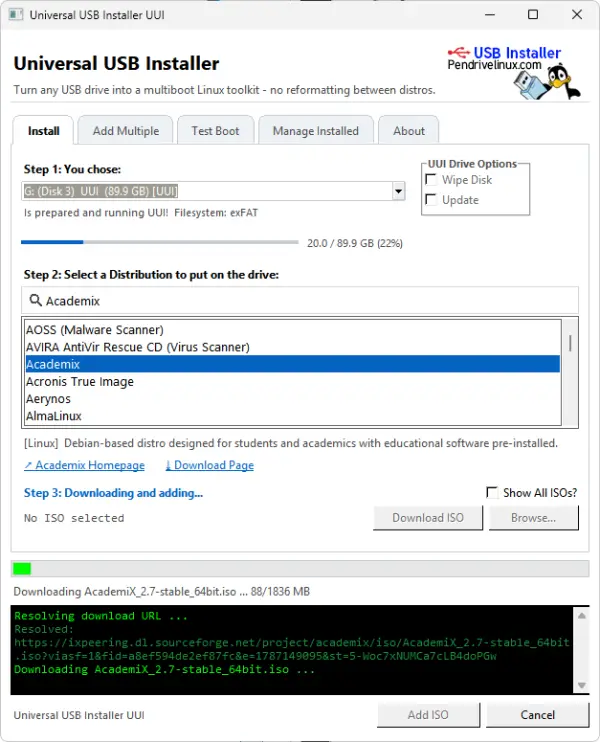
One capability that sets UUI Py apart from other USB creation tools: it can detect and work with drives that were originally prepared by UUI, YUMI, or even standard Ventoy. That means you can add, remove, or manage ISOs on an existing multiboot drive without reformatting it or starting over, regardless of which tool built it in the first place.
What's New in UUI Py?
- Windows and Linux, natively: Runs on either platform without WINE or compatibility layers.
- Works with existing drives: Detects and manages USB drives prepared by UUI, YUMI, or standard Ventoy - not just drives it created itself.
- Automatic ISO downloads: Download supported distributions directly from within the application and directly to the drive.
- Batch mode: Add multiple ISO files to a USB drive in a single operation instead of one at a time.
- Built in VM test boot: Boot an ISO, or the entire prepared USB drive, inside a QEMU virtual machine to verify it works - without rebooting your computer.
- USB management: View everything currently installed on a drive, add more bootable items, and remove ones you no longer need.
UUI Py keeps the familiar three step workflow of the classic tool while adding this newer interface and expanded management features for both freshly created and pre-existing bootable USB drives.
UUI vs UUI Py
| Feature | Universal USB Installer | UUI Py |
|---|---|---|
| Platform | Windows (Linux via WINE) | Native Windows and Linux |
| Bootable USB Creation | Yes | Yes |
| Works With Drives From Other Tools | No | Yes (UUI, YUMI, standard Ventoy) |
| Batch-Add Multiple ISOs | One at a time (or drag-and-drop) | Yes, built-in batch mode |
| Built-in Test Boot (No Restart) | No (separate UUI-TestBoot.exe addon) | Yes, built in |
| USB Management (view/add/remove) | Limited | Yes |
| Persistence Tools | Supported for compatible distributions | Supported for compatible distributions |
| Portable Use | Yes | Yes |
For occasional use on Windows, the classic UUI still covers everything most people need. But UUI Py is worth considering if you work across both Windows and Linux, maintain a large or evolving collection of bootable ISOs, or want to test a drive actually boots before you rely on it - all from one application instead of several separate tools.
Test Boot Your USB Drive Without Rebooting
Restarting your PC just to check whether a freshly made drive boots correctly takes time, and if something's wrong you have to restart all over again to try something else. UUI Py's built-in test boot (also available as the standalone, portable UUI-TestBoot.exe addon for classic UUI drives) skips that step by booting your prepared drive, or a single ISO on it, inside a small virtual machine window on your current desktop.
It runs on QEMU or VirtualBox, and can stream the boot to a browser over your local network so someone else on the LAN can test it too. Whole-drive boot is detected as writable or read-only automatically, with nothing to configure.
Why UUI Py Is Worth Considering
UUI Py is especially useful for Linux enthusiasts, Windows technicians, developers, students, and anyone who maintains a portable USB toolkit across more than one operating system. Because it can read and manage drives originally built with UUI, YUMI, or Ventoy, it fits naturally alongside existing bootable USB collections rather than requiring you to rebuild them from scratch.
UUI Py stands alone because it combines almost every single bootable USB feature imaginable into one utility without compromising.
Why UUI Py Has No Rival
UUI Py stands alone because it combines almost every single bootable USB feature imaginable into one utility without compromising. It has no rival... except maybe YUMI Py. 🙂
All in One: It handles downloads, persistence, multi booting, and exFAT/NTFS formatting in one app.
No Compromises: Other tools force you to pick between easy multi booting or deep system configuration, but UUI Py does both.
Total Control: It gives advanced users the exact layout they want while staying simple enough for quick tasks.
Why Use UUI as Your Bootable USB Tool?
Whether you are a Linux enthusiast, IT technician, or first-time user, UUI is a strong choice when you need a reliable ISO-to-USB tool for Linux or Windows. It balances ease of use with genuine capability - supporting a wide range of ISOs, offering persistent storage, and using the Ventoy bootloader internally for better UEFI and multi ISO compatibility.
UUI has been actively maintained since 2008, predating Rufus, Ventoy, and YUMI, and was the first Windows based bootable USB tool to offer persistence. It remains one of the most downloaded tools in this category.
How to Use Universal USB Installer
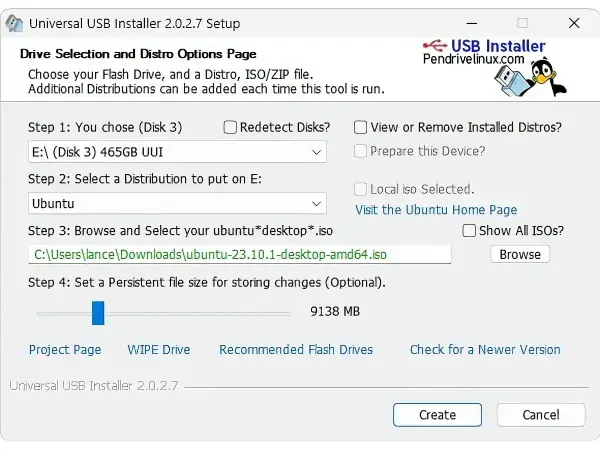
Follow these steps to create a bootable USB flash drive using UUI:
- Download UUI: Visit the official download page and get the latest version, or grab UUI Py if you need native Linux support or built-in test booting.
- Launch the Tool: No installation needed - just double-click the executable.
- Select USB Drive: Choose your USB flash drive from the dropdown list.
- Select Distribution: Pick the Linux distro, Windows version, antivirus utility, or tool you want to make bootable.
- Browse for ISO: Select the ISO file from your local system, or use the built-in download link for the selected distro.
- Set Persistence (Optional): For Linux distributions that support it, use the slider to allocate space for saving files and settings between reboots.
- Click Create: Let the program build the bootable USB drive. A progress bar shows the status.
- Reboot and Boot from USB: Restart your PC and select the USB device as the boot source from your BIOS or boot menu (usually accessed with F12, F2, or Delete during startup) - or use UUI Py's built in test boot to check it first; USB boot without restarting.
Note: A USB drive of at least 8 GB is recommended for most modern Linux distributions. The drive will be completely wiped and formatted during the process, so back up any existing data first.
Universal USB Installer Specs and Download
- Author's Website: Make bootable USB drives with UUI
- Developer: Pendrive Linux
- First Release: 2008
- Current Version: Classic UUI 2.0.3.9 | UUI Py 1.0.0.1
- License: Open Source
- OS Compatibility: Classic UUI: Windows 11, 10, 8, 7 (Linux via WINE) | UUI Py: native Windows 10/11 and Linux
- Category: Bootable USB Software, Portable Utilities
- Download UUI Py: Download Universal USB Installer
Note: For creating a multiboot USB with multiple ISOs on a single drive, check out YUMI - Your Universal Multiboot Installer, which offers even more advanced USB boot capabilities including dynamic ISO management without rebuilding the drive.
USB Bootable Tool Comparison: UUI vs YUMI vs Rufus vs Ventoy
| Feature | UUI | YUMI | Rufus | Ventoy |
|---|---|---|---|---|
| Multiboot Support | Yes | Yes | No | Yes |
| Persistent Storage Support | Yes | Yes | Yes (limited to Debian/Ubuntu-based ISOs) | Yes (with plugin) |
| Supported ISO Types | Linux, Windows, Rescue Tools, IMG, WIM, VHD | Linux, Windows, Rescue Tools, IMG, WIM, VHD | Linux, Windows | Any bootable ISO/IMG (auto-detection) |
| Test Boot Without Restarting | Yes (via UUI Py or UUI-TestBoot addon) | No | No | No |
| Native Linux Support | Via WINE (UUI Py: native) | Via WINE | Via WINE | Yes |
| Secure Boot Support | Yes | Yes | Yes | Yes |
| Ease of Use | Beginner | Beginner to Intermediate | Intermediate | Beginner (drag and drop only) |
| Requires Rebuilding USB to Add ISOs? | No | No | Yes | No |
| Installation Needed | No | No | No | No |
| Open Source | Yes | Yes | Yes | Yes |
| Best Use Case | Live Linux USB, multiboot toolkit, persistent installs, cross platform | Multiboot USB with multiple tools, persistence, cross platform | Fast single ISO flashing for installs | Flexible ISO testing and multiboot |
Frequently Asked Questions
What is Universal USB Installer and what does it do?
Universal USB Installer (UUI) is a free, open source bootable USB creator. It supports Linux distributions, Windows installers, antivirus rescue tools, and system utilities. You select a distro, choose your ISO, pick your USB drive, and click Create. The tool handles formatting, bootloader setup, and file copying automatically.
What's the difference between classic UUI and UUI Py?
Classic UUI is the long-running Windows tool (also runnable on Linux via WINE). UUI Py is a newer, cross-platform rewrite that runs natively on both Windows and Linux, and adds batch ISO adding, built-in test booting in a virtual machine, and the ability to detect and manage drives originally prepared by UUI, YUMI, or standard Ventoy.
Does Universal USB Installer support UEFI and Secure Boot?
Yes. UUI uses the Ventoy bootloader internally, which provides UEFI and Secure Boot support. To enable Secure Boot compatibility, select the VTOYEFI option during startup and enroll the included key using MokManager.
Can I test whether my USB drive boots without restarting my computer?
Yes. UUI Py includes a built-in test boot feature, and classic UUI users can use the standalone UUI-TestBoot addon. Both boot your drive, or a single ISO on it, inside a QEMU or VirtualBox virtual machine on your current desktop - no restart or BIOS boot menu required.
What is Live USB persistence and which distros support it?
Persistence lets you save files, settings, and installed packages to your USB drive so they are available the next time you boot. UUI supports this for Arch, Fedora, Ubuntu, and Debian-based distributions, including Kali Linux. You can allocate up to 40 GB of persistence space.
Can I add multiple ISOs to one USB drive without reformatting?
Yes. With classic UUI, you can drag and drop additional ISO, IMG, WIM, VHD/VHDX, or EFI files onto the UUI folder on your flash drive. UUI Py adds a batch mode for adding several ISOs in one operation. Boot menu entries populate automatically on the next startup.
What USB drive size do I need?
A minimum of 4 GB is required for lightweight distributions, but 8 GB or more is recommended for most modern Linux ISOs. For multiboot setups or persistent installs, 16 GB or larger is ideal.
Does UUI work on Windows 11?
Yes. Classic UUI is compatible with Windows 11, 10, 8, and 7, and UUI Py runs natively on Windows 10 and 11 as well as Linux.
What is the difference between UUI and YUMI?
Both are developed by Pendrive Linux. UUI is focused on single-distro bootable USB creation with optional persistence, and supports multiboot via drag-and-drop with the Ventoy bootloader. YUMI is purpose-built for multiboot USB drives and offers more streamlined management of multiple ISOs, including a dedicated removal tool for each installed distro.
What is the difference between UUI and Rufus?
Rufus offers more control over partition scheme and filesystem options, making it well suited for Windows installers and users who need GPT/MBR flexibility. UUI supports a much wider range of Linux distributions natively, includes built-in download links, auto ISO downloading, supports persistence, and - through UUI Py - runs natively on Linux and can test boot a drive through qemu without restarting.
Can I use UUI to create a Windows 11 bootable USB?
Yes. UUI supports creating Windows 10 and Windows 11 installation USB drives, as well as Windows To Go drives for running Windows portably from the USB itself.
Is Universal USB Installer safe to use?
Yes. UUI has been downloaded millions of times and actively maintained since 2008. It's open source, and the full source code is published alongside each release for anyone to review.
Final Thoughts on Universal USB Installer
Universal USB Installer remains one of the most trusted and widely used bootable USB creators available. Its user-friendly interface, extensive distro support, persistent storage, Secure Boot compatibility, and no-install portability make it a go-to choice for Linux enthusiasts, IT professionals, and everyday users alike. UUI Py extends that further with native cross-platform support, batch ISO management, and the ability to test-boot a drive - or manage one built by UUI, YUMI, or Ventoy - without ever needing to rebuild it from scratch.
Whether you are setting up a Live Linux environment for testing, creating a Windows installer USB, building a portable system recovery toolkit, or running antivirus rescue tools, UUI handles the job reliably. For multiboot setups where you need to backup/restore or clone bootable USB drives, YUMI remains the stronger specialized option.