PendriveLinux OS Review: A Complete Portable Linux Desktop on a USB Flash Drive
PendriveLinux OS takes the idea of portable software a step further by putting an entire Linux desktop on a USB flash drive. Instead of carrying individual portable applications or booting into a temporary Live Linux environment, you can take your own operating system, applications, documents, and desktop settings wherever you go.
Developed by PendriveLinux, the team behind popular bootable USB creation tools such as YUMI and Universal USB Installer (UUI), PendriveLinux OS is designed to provide a convenient, self-contained desktop environment that boots directly from removable storage.
Once installed, simply plug your USB drive into a compatible computer, select it as the boot device, and start working in your own portable desktop. Your files, installed applications, preferences, and system updates remain saved on the flash drive, allowing you to pick up where you left off the next time you boot.
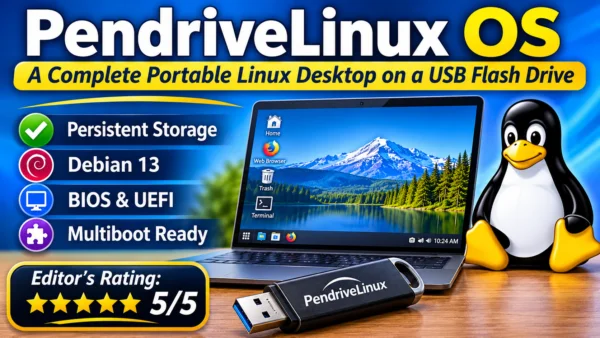
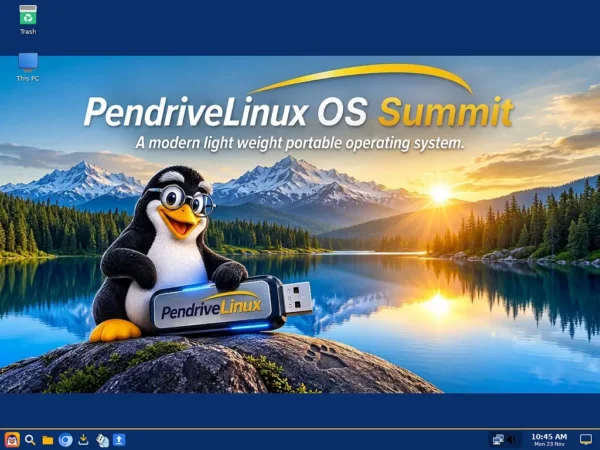
Based on Debian GNU/Linux 13, PendriveLinux OS provides a familiar desktop experience with a taskbar, application menu, desktop icons, file manager, web browser, terminal, and other everyday utilities. Its lightweight desktop design also makes it a practical alternative to carrying a laptop for certain computing tasks.
A Linux Desktop That Travels With You
One of the biggest advantages of PendriveLinux OS is its built-in persistence. Traditional Live Linux environments typically start with a clean session, and changes may disappear after restarting unless persistence has been configured separately.
PendriveLinux OS takes a different approach. It installs a writable Linux system directly onto the USB drive. Your documents, downloaded files, browser preferences, desktop customizations, installed software, and updates are retained between sessions.
This means you aren't simply booting into a temporary Linux environment. You're carrying a personal desktop that can be used on different compatible computers.
The desktop is designed to feel familiar, particularly for Windows users making the transition to Linux. It includes a taskbar, a Start-style application menu, desktop shortcuts, right-click menus, and convenient access to system settings.
Key Features
- Full Portable Linux Operating System: Carry an entire Linux desktop on a USB flash drive instead of relying on a temporary Live session or installing Linux on every computer you use.
- Built-In Persistence: Documents, personal files, installed applications, desktop preferences, and system updates are saved directly to the USB drive.
- Debian 13 Foundation: Built on Debian GNU/Linux 13, providing access to its extensive software repositories and package management system.
- Lightweight Desktop: A familiar desktop layout with a taskbar, application menu, desktop icons, file manager, terminal, and everyday utilities.
- BIOS and UEFI Support: Designed to boot on both legacy BIOS and modern UEFI computers. Secure Boot is supported on compatible systems.
- Broad Hardware Support: Includes additional Debian firmware for many wireless networking, graphics, and other hardware components.
- Install Additional Software: Use the graphical application installer or Debian package management tools to add software and customize your environment.
- Multiboot Compatibility: Install PendriveLinux OS alongside other bootable operating systems, Windows installers, Linux distributions, and recovery utilities using UUI Py or YUMI.
- Optional Shared Storage: Reserve part of the USB drive as an exFAT storage partition that can be accessed from Windows, macOS, and Linux.
- Portable and Self-Contained: Your operating system and personal working environment travel with the USB drive rather than depending on the host computer's internal storage.
A Familiar Desktop Environment
PendriveLinux OS aims to make portable Linux approachable, even for people who primarily use Windows.
The desktop includes a taskbar with a penguin-style application menu, shortcuts, and access to commonly used applications. The menu organizes software into categories, making it easier to locate programs and system utilities.
A file manager, web browser, media player, terminal, and other useful tools are included to get you started. You can also install additional applications as needed.
Desktop customization is supported, allowing you to adjust the wallpaper, taskbar, applications, and other preferences. Keyboard shortcuts are available as well, with F1 displaying a list of shortcuts.
The result is a desktop that feels more like a regular Linux installation than a disposable bootable USB environment.
Persistence Makes All the Difference
For anyone considering a portable Linux installation, persistence is particularly important. With PendriveLinux OS, your USB drive acts as the system drive. Changes made during a session are written to the drive and remain available after shutting down and restarting.
For example, you can:
- Save documents and other personal files.
- Download files and keep them between sessions.
- Install additional Linux applications.
- Customize the desktop and system preferences.
- Save browser bookmarks and preferences.
- Receive software and security updates.
You can use the same desktop environment on different computers without having to recreate your settings each time. Keep in mind that your USB flash drive is also where your important data resides. Regular backups are recommended, particularly if you intend to use PendriveLinux OS as your everyday portable computer.
Multiboot USB Integration
PendriveLinux OS has an additional advantage for anyone already using PendriveLinux's bootable USB creation utilities. Using Universal USB Installer (UUI Py), you can install the operating system into its own partition while retaining the UUI boot menu and other supported bootable utilities on the same USB drive.
This makes it possible to carry a complete Linux desktop alongside Windows installation media, other Linux distributions, system recovery environments, and diagnostic tools.
Rather than dedicating an entire flash drive to a single Live Linux distribution, you can build a more versatile USB toolkit that includes an operating system you can actually work from.
YUMI is another option for building multiboot USB drives, although the installation instructions and supported workflows should be checked for the version being used.
Installation and Setup
Getting started with PendriveLinux OS is relatively straightforward. You will need a USB flash drive and a computer capable of booting from USB.
System Requirements
- USB flash drive with at least 8 GB of storage.
- 16 GB or more recommended for additional applications and personal files.
- A computer supporting USB boot.
- Legacy BIOS or UEFI firmware.
- Universal USB Installer (UUI Py) for the recommended multiboot installation method.
A faster USB 3.0 flash drive or external USB SSD is recommended for a more responsive desktop experience.
Installing PendriveLinux OS with UUI Py
- Download PendriveLinux OS: Visit the official PendriveLinux OS page and download the compressed
.img.xzdisk image. There is no need to extract the image before using UUI Py. - Open Universal USB Installer: Launch UUI Py on Windows or Linux and select the USB flash drive you want to prepare.
- Prepare the USB Drive: Enter the amount of space to reserve for PendriveLinux OS in the Reserve (GB) field, then select Prepare Drive. This process erases the existing contents of the selected USB drive, so back up anything important first.
- Install the OS Image: Open the OS Image tab, select Install OS Image, and browse to the downloaded
.img.xzfile. UUI Py writes PendriveLinux OS to its own partition and verifies the written data. - Configure the Boot Menu: Choose whether the USB drive should display the regular UUI boot menu or automatically start PendriveLinux OS after a countdown. You can still interrupt the countdown to select another boot option.
- Boot Into Linux: Restart your computer and open its BIOS/UEFI boot menu. Select your USB flash drive to start PendriveLinux OS.
On the first boot, the system expands to use the available space. A setup wizard then allows you to configure your password, keyboard layout, timezone, and optional shared storage.
The shared storage option lets you reserve part of the USB drive as an exFAT partition accessible from Windows, macOS, and Linux. Decide whether you want this feature during initial setup, as changing the partition arrangement later requires reformatting.
Important: Preparing the USB drive erases its existing contents. Double-check the selected drive before proceeding.
Using PendriveLinux OS on Different Computers
Once configured, PendriveLinux OS can be used on other compatible computers without installing anything on their internal drives.
Connect the USB drive, select it from the computer's boot menu, and your portable desktop loads with its saved files, applications, and preferences.
This can be useful for:
- Taking your personal desktop between home, work, and school.
- Working on computers without installing another operating system.
- Having a consistent Linux environment available on multiple PCs.
- Carrying troubleshooting and recovery utilities alongside your regular desktop.
- Experimenting with Linux without replacing an existing Windows installation.
Booting from the USB drive does not require modifying the computer's existing Windows installation. However, internal disks may still be accessible from Linux, so avoid mounting, formatting, or modifying them unless you intend to.
Hardware compatibility can vary between computers. Wireless networking, graphics, sound, and other devices generally depend on the available Linux drivers and firmware.
Things to Consider
PendriveLinux OS offers considerable flexibility, but there are a few things worth considering before making it your primary portable desktop.
USB Drive Performance: The overall experience depends heavily on the speed of your flash drive. A slower USB stick can make application launches, software installation, and system updates noticeably less responsive. A quality USB 3.x drive or external SSD is preferable.
Storage Capacity: Although 8 GB is the minimum requirement, additional space is useful for installed applications, documents, downloads, and updates. A 32 GB or 64 GB drive provides more room for a practical everyday installation.
Hardware Compatibility: While BIOS, UEFI, and Secure Boot are supported, not every computer has identical hardware. Very new wireless adapters or graphics devices may occasionally require additional drivers or firmware.
Physical Security: Your personal files and system settings travel with the drive. Protect the USB device and use a strong login password. Change the default login credentials during initial setup.
Backups: Persistence means your data remains on the drive, but it also means flash drive failure could result in lost files. Keep separate backups of important documents.
Specifications
- Software: PendriveLinux OS
- Version: 1.0 "Summit"
- Operating System: Linux
- Base Distribution: Debian GNU/Linux 13
- Desktop: Lightweight Openbox-based desktop environment
- Architecture: x86-64 PCs
- Boot Support: Legacy BIOS and UEFI
- Secure Boot: Supported
- Storage: Persistent writable USB installation
- File Sharing: Optional exFAT shared storage
- USB Requirements: 8 GB minimum, 16 GB or larger recommended
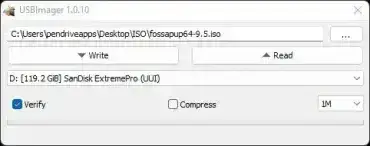
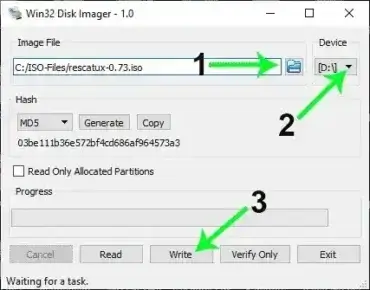
- Installation Utility: Universal USB Installer (UUI Py), or compatible raw image-writing software
- License: Free
- Developer: PendriveLinux
Editor's Rating: 5/5
Download PendriveLinux OS
PendriveLinux OS is available as a compressed disk image that can be installed using Universal USB Installer (UUI Py). Download the image from the official project page and follow the installation instructions above to create your own portable Linux desktop.
Official Website: https://pendrivelinux.com/os/
Getting Started Guide: https://pendrivelinux.com/os/getting-started/
Final Thoughts
PendriveLinux OS is an interesting extension of the portable software concept. Instead of carrying a collection of applications that run within Windows, you can carry an entire Linux desktop that boots independently from a USB flash drive.
Its persistent storage, familiar desktop layout, Debian foundation, and multiboot integration make it particularly appealing to people who want a consistent Linux environment available on multiple computers.
The ability to install it alongside other bootable utilities using UUI Py is another welcome feature, especially for users who already maintain multiboot USB drives.
While performance will depend on the quality of the USB storage device, PendriveLinux OS provides a convenient way to take your own Linux desktop, applications, and files wherever you go.
If you have ever wanted to carry your own computer environment in your pocket, PendriveLinux OS is well worth exploring.