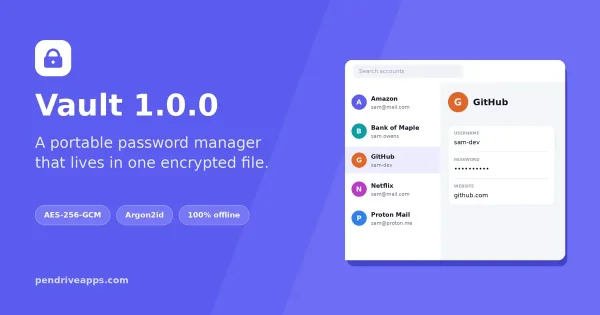
Vault - Portable Password Manager is a simple standalone, free password manager created by Pendriveapps.com, that runs entirely from a USB drive. There's nothing to install, no account to create, and no cloud involved - you unlock it with one master password, and all your saved logins are right there in one Password Vault.
What Is Vault - Portable Password Manager?
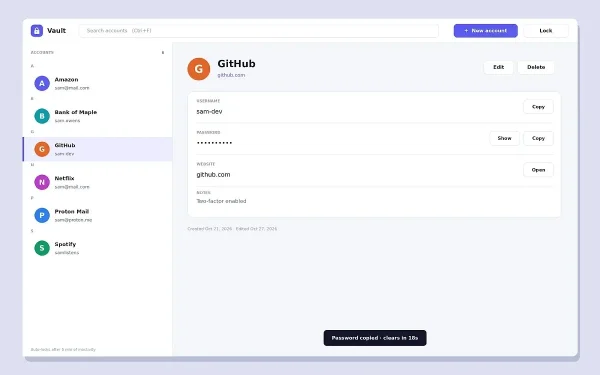
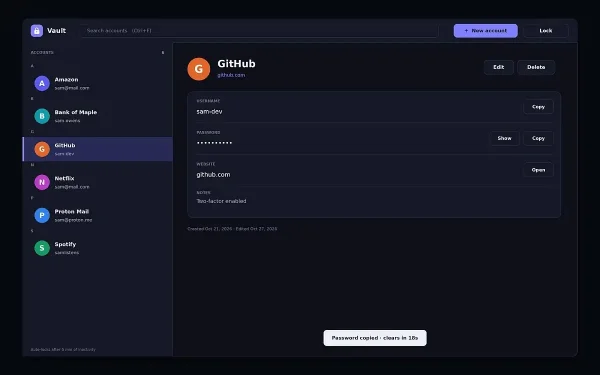
It's a small program that stores your usernames and passwords in a single locked file called a vault. That password vault file lives on your USB stick, right next to the program itself. Plug the drive into any Windows, Linux, or macOS computer, open the program, type your master password once, and you can see and copy all your saved logins.
When you're done, you can remove the USB drive and take the encrypted vault with you. This reduces the need to store credentials in a cloud account, but it does not guarantee that the host computer retains no traces. Copying passwords, opening websites, or using the operating system may leave activity records or temporary data. Lock the vault when finished, clear the clipboard where appropriate, and avoid entering sensitive credentials on computers you do not trust.
Key Features
- Runs from a USB drive - no traditional installer or admin rights are intended to be needed. The encrypted vault is stored where you place it, but the operating system or other software may still create activity records or temporary data on the host computer.
- One master password unlocks everything
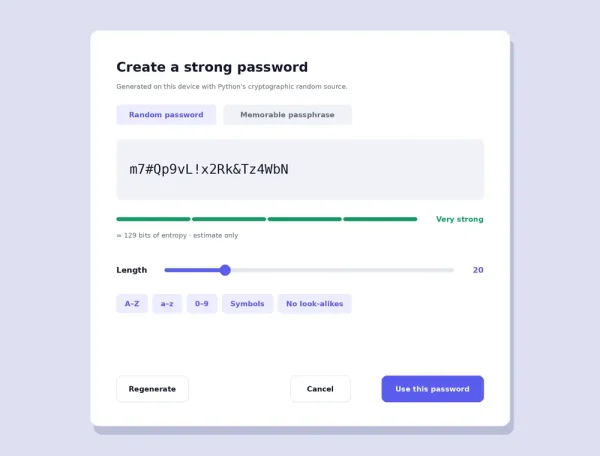
- Built in password generator - creates a strong, random 20-character password with one click
- Search box to instantly filter your saved logins by name, username, or website
- Click-to-open websites - click a saved URL and it opens right in your browser
- Copy username or password with one click; the clipboard automatically clears itself 20 seconds later so nothing sensitive lingers
- Right click Cut/Copy/Paste on every text field, plus normal Ctrl+C / Ctrl+V shortcuts
- Works on Windows, Linux, and macOS - same program, same vault format, everywhere
How It Keeps Your Passwords Safe
Short answer: your vault file is scrambled with the same kind of encryption banks and security companies use, and it can only be unscrambled with your master password.
Here's the plain English version of what's happening under the hood:
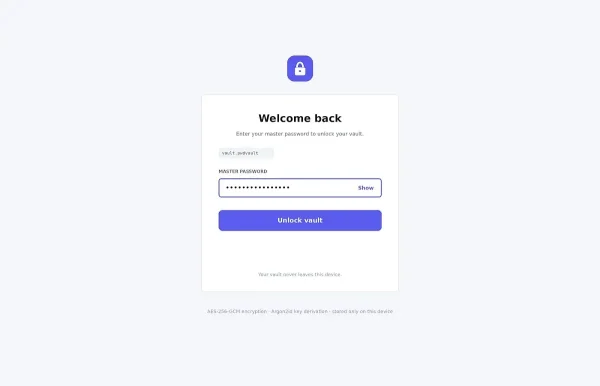
- Your master password is run through something called Argon2id - think of it as a deliberately slow, memory-hungry math process. It's designed to make guessing your password extremely expensive for an attacker, even if they somehow got a copy of your vault file.
- The actual passwords inside your vault are protected with AES-256-GCM, an authenticated encryption mode widely used to protect data. The 256-bit key size makes exhaustive key guessing impractical with current computing, but overall security also depends on the implementation, master-password strength, and keeping the software updated.
- The vault also has built-in tamper detection: if even a single byte of the file gets corrupted or altered, the program will refuse to open it rather than showing you broken or fake data.
Your master password is never stored anywhere - not in the vault file, not on the USB drive, not anywhere else. If you forget it, there is no "reset password" link and no way to recover your vault. That's the trade off of a tool with no company, no servers, and no account behind it: total privacy, but total responsibility on you to remember your master password (or keep it written down somewhere safe).
How to Use It
On Windows you can just double click the .exe to start the program.
In Linux, open a terminal and navigate to where the program is stored, then type the following to run it for the first time:
chmod +x PortablePasswordManager && ./PortablePasswordManager1. First time setup
Copy the program onto your USB drive and run it. Since no vault exists yet, you'll be asked to create a master password (at least 8 characters). Choose something you'll remember but nobody else could guess - a short phrase works well, like threebluebikes42!. Type it twice to confirm, and your vault is created.
2. Adding a saved login
Click Add. Fill in a title (like "Gmail" or "Work VPN"), your username, and your password - or click Generate to have the program create a strong random one for you. You can also save the website's URL and any notes. Click Save.
3. Using a saved login
Find the entry in the list (use the search box if you have a lot saved), then:
- Click Copy Username or Copy Password, then paste it wherever you need it
- Click the website's URL directly in the list to open it in your browser
4. Editing or deleting an entry
Double-click any entry to edit it, or select it and click Edit. To remove one, select it and click Delete - you'll be asked to confirm first, since this can't be undone.
5. Locking up
Click Lock before you walk away or pull out the USB drive. This clears your master password and vault contents from the computer's memory. The next time you (or anyone else) opens the program, it'll ask for the master password again.
Is It Really Safe to Keep Passwords on a USB Drive?
An encrypted vault can help protect saved credentials if a USB drive is lost, but security also depends on the implementation, the strength of your master password, and the computer used to unlock it. A compromised or untrusted host may capture credentials while the vault is open.
Because the vault is encrypted with your master password, anyone who finds or steals the drive still can't read your passwords without knowing that password. That said, a few sensible habits go a long way:
- Use a strong, unique master password - this is the one password protecting all the others
- Keep a backup copy of the vault file somewhere else, in case the USB drive is lost, damaged, or stops working
- If the drive is ever lost or stolen, change the passwords stored inside it as a precaution, the same way you would after any password manager breach
Being Upfront About Current Limitations
This is a young, actively developed tool, so it's worth knowing what it doesn't do yet:
- No cloud sync - your vault only exists where you put it. If you want it on two USB drives, you copy the file yourself.
- No mobile app or browser extension - it's a desktop program only, for now.
- No auto-lock timer yet - if you unlock the vault and walk away without clicking Lock, it stays unlocked. Get in the habit of locking it manually.
- No password recovery - forgetting your master password means losing access to that vault permanently. There's no backdoor, by design.
- Windows builds are the most tested so far; the Linux build has been verified to run correctly, and macOS support is built in but hasn't been tested on real hardware yet. If you try it on macOS, feedback is welcome.
How It Compares to Other Password Managers
| Portable Password Manager | Cloud password managers (e.g. Bitwarden, LastPass) | KeePass-style offline vaults | |
|---|---|---|---|
| Where your data lives | Only on your USB drive or wherever you store the Portable Password Manager and vault.ppwm file. | Synced to the provider's servers | Wherever you save the vault file |
| Needs an account? | No | Yes | No |
| Works without internet? | Yes, always | Mostly, with caching | Yes, always |
| Syncs across devices automatically? | No - you carry the drive | Yes | No, usually manual |
| Best for | People who want full control and zero cloud dependence | People who want automatic sync across many devices | Similar offline first users, with a longer track record |
If you prefer an established offline vault format, compare this app with our KeePass Password Safe review. KeePass has a longer history, while Portable Password Manager is designed around a simple USB-based workflow without cloud sync.
Frequently Asked Questions
Do I need to install anything?
No. Copy the Portable Password Manager program to your USB drive and run it directly - there's no installer and no admin rights required.
What happens if I lose my master password?
There's no way to recover the vault without it. This is intentional - nobody, including the developer, holds a backup key to your data. Write your master password down somewhere safe if you're worried about forgetting it.
Can I use the same vault on more than one computer?
Yes - just plug the same USB drive into any Windows, Linux, or macOS computer and run the program from there.
Is my data sent anywhere online?
No. The program never connects to the internet on its own, except when you click a saved website link (which opens in your own browser) or the "Check for Updates" menu item.
What encryption does it use?
Argon2id to derive a key from your master password and AES-256-GCM to encrypt the vault contents. Security also depends on implementation and master-password strength.
Is it free?
Yes, It is freeware, but comes with absolutely no warranty.
Download Portable Password Manager
Download Portable Password Manager for Windows (.exe)
Download Portable Password Manager for Linux
Download Portable Password Manager for macOS