Pazera Free Audio Extractor: Extract and Convert Audio
Pazera Free Audio Extractor is a Windows utility for extracting soundtracks from video files and converting audio between formats. It supports common output formats such as MP3, AAC, M4A, WMA, Ogg, FLAC, AC3, WAV, AIFF, and WavPack. When the source audio is already compatible with the selected output, the program can copy the stream without re-encoding, avoiding an unnecessary quality-loss step.
Pazera Free Audio Extractor: Convert and Extract Audio
Extract Audio from Video Files
Pazera Free Audio Extractor is designed to separate an audio track from a video without converting the video itself. The publisher describes support for more than 70 audio and video input formats. Examples include AVI, MP4, MOV, MKV, WebM, WMV, FLV, and MPG, although the formats available for a particular file depend on its container, codecs, and the components included with the program.
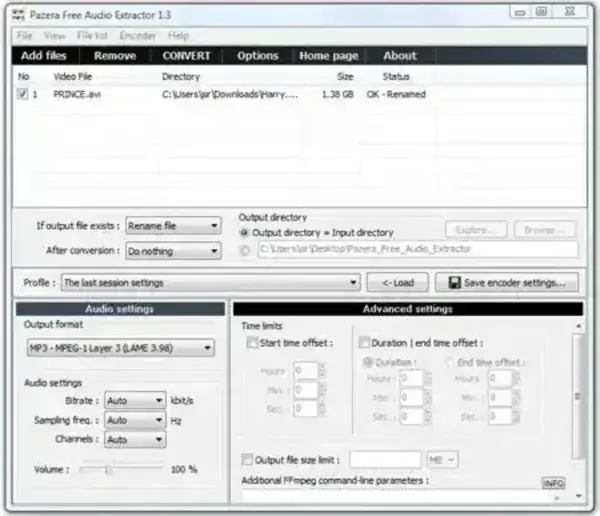
You can select an output format and adjust encoding settings such as bitrate, sample rate, and channel configuration where supported. These settings affect the size and characteristics of the output. A higher bitrate can reduce additional losses during lossy encoding, but it cannot restore detail that was missing from the source recording.
Copying Audio Without Re-encoding
When the source video already contains an audio stream in a format suitable for the intended output, stream copying can avoid another lossy encoding pass and may finish more quickly. If you select a different format or settings that are not compatible with the original stream, the audio must be converted.
Stream copying does not improve the original audio or change its codec. It simply transfers the existing encoded stream into the output file when the selected container and settings allow it. Keep the original video until you have played the extracted audio and confirmed that the result is complete.
How to Extract Audio from a Video
- Download the portable package from the official Pazera Software website and extract it to a folder.
- Launch the Free Audio Extractor executable.
- Add the video file or files that contain the audio you want to extract.
- Choose an output format, such as MP3, AAC, FLAC, or WAV, based on the device or application where you plan to use the result.
- Review the available bitrate, sample-rate, channel, and output-folder settings.
- Use stream copying when the source audio is already compatible and you want to avoid re-encoding; otherwise, choose the conversion settings you need.
- Start the job and play the resulting file before deleting or moving the original video.
For a batch of files, test the settings with one short sample first. This helps confirm that the chosen format and output location work as expected before processing a larger collection.
Portable Package and Compatibility
Pazera distributes portable Windows utilities and also offers a collection called Free Audio Video Pack. Extract the downloaded archive to a folder and launch the executable from there. The publisher's release information lists Pazera Free Audio Extractor 2.11, dated January 19, 2021. This is the latest version identified in the publisher's available release information, so do not assume that the program is receiving current updates or that every modern codec and Windows configuration is supported.
Pazera Free Audio Extractor Specifications
- Developer: Jacek Pazera / Pazera Software
- Latest identified version: 2.11 (January 19, 2021)
- License: Freeware
- Platform: Windows
- Purpose: Extract audio tracks from video and convert audio files
- Output formats: MP3, AAC, M4A, WMA, Ogg, Opus, FLAC, AC3, E-AC3, MKA, CAF, WavPack, AIFF, and WAV
- Deployment: Portable application; also included in the Free Audio Video Pack
- Official product information: Pazera Free Audio Extractor
- Publisher website: Pazera Software
- Editor's Rating: ★★★☆☆ (3/5)
Frequently Asked Questions
Can Pazera Free Audio Extractor convert video to MP3?
Yes. It can extract an audio track from a supported video file and save it in MP3 or another supported output format.
Does extracting audio reduce its quality?
Not necessarily. If the program can copy the existing audio stream without re-encoding, it avoids another encoding pass. Converting to a lossy format such as MP3 can reduce quality, depending on the source and chosen settings.
What is the difference between stream copying and converting?
Stream copying transfers the existing encoded audio without decoding and re-encoding it. Conversion decodes the source and encodes it in a different format or with different settings. Stream copying is only possible when the source stream is compatible with the selected output.
Can it extract audio from every video file?
No utility can guarantee support for every file. Compatibility depends on the container, audio codec, and components available in the particular build. An unusual or damaged file may fail to open or convert.
Is Pazera Free Audio Extractor portable?
The publisher distributes portable Windows utilities and includes portable versions in its Free Audio Video Pack. Extract the package and run the program from its folder. The publisher's documented version 2.11 dates to 2021, so test it on your Windows system before relying on it.
Is Pazera Free Audio Extractor Worth Using?
Pazera Free Audio Extractor is a straightforward option for separating audio from video or converting audio files without opening a full video editor. Its support for many formats and ability to copy compatible audio streams without re-encoding are useful strengths. The main qualification is its age: the latest release identified by the publisher dates to 2021, and support for newer codecs or Windows changes should not be assumed. Keep your source files and verify extracted audio before using it as your only copy.