MozBackup - Portable Firefox and Thunderbird Backup Tool
MozBackup is a Windows utility for backing up and restoring profiles from Firefox, Thunderbird, and several other Mozilla-based applications. It can collect profile data such as bookmarks, mail, contacts, settings, extensions, and passwords into a single PCV archive. The project resumed development after a long pause, but its long-standing stable release is still version 1.5.1; newer 1.6 builds are beta releases. Because profile formats and application security features change, do not rely on the older stable release as your only backup for current Firefox or Thunderbird installations.
- Official Website: Project Page
- Stable Version: 1.5.1 (legacy release); 1.6 Beta 2 is listed by the developer as a test release.
- Package Size: Approximately 1 MB for the stable ZIP download.
- Supported OS: Windows 7, 8, 10, and 11 according to the project website; no macOS or Linux version is provided.
- License: Freeware, including commercial use.
- Editor's Rating: ★★★★☆ (4/5)
- Download: Get MozBackup
The ZIP edition can be extracted and launched without a conventional installation, which makes it convenient to carry between Windows PCs. However, portability does not guarantee that a backup created by an older version can be restored successfully into a current browser or mail-client profile. Always test a backup before depending on it.
Features of MozBackup
- Backup and restore Firefox profiles, including bookmarks, saved passwords, and settings.
- Backup and restore Thunderbird profiles, including emails, contacts, and account settings.
- Supports other Mozilla-based applications like SeaMonkey and Netscape.
- User-friendly interface with step-by-step wizards.
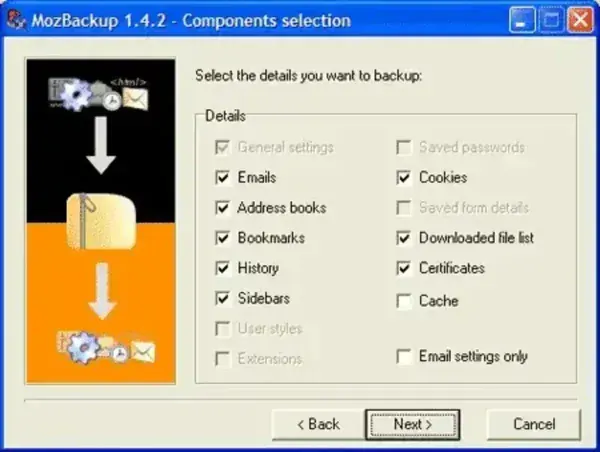
- Option to include or exclude specific profile components during backup or restore.
- Completely portable – no installation required, ideal for USB drives.
How to Use MozBackup
Step 1: Download and Install
- Download the tool from the official website or this link.
- Extract the contents of the zip file to your preferred folder.
- Run the
MozBackup.exefile. No installation is needed, so it's ready to use immediately!
Step 2: Backup Your Profile
- Launch MozBackup and select the Backup a Profile option.
- Choose the application you want to back up (e.g., Firefox or Thunderbird).
- Select the profile you want to back up. If you're unsure, choose the default profile.
- Pick a destination folder where the backup file (.PCV) will be saved.
- Optionally, password-protect your backup for added security.
- Click Next to start the backup process.
Step 3: Restore a Profile
- Launch MozBackup and select the Restore a Profile option.
- Choose the application and the profile you want to restore.
- Locate the backup file (.PCV) and click Next.
- Follow the prompts to complete the restoration process.
Advantages of Using MozBackup
- Portability: No installation required, making it easy to run directly from a USB drive.
- Data Security: Password-protect backups to safeguard sensitive information.
- Flexibility: Restore profiles on the same PC or transfer them to a new computer.
- Simplicity: Intuitive interface suitable for users of all experience levels.
Limitations
While MozBackup is a fantastic tool, it does come with a few limitations:
- The 1.5.1 stable release is old. The developer resumed work and published 1.6 beta builds, but explicitly cautions users to test beta versions and use stable versions for important backups.
- Some profile components (e.g., certificates or non-Mozilla extensions) may not be included in the backup.
- Not available for macOS or Linux users – it only supports Windows.
Final Thoughts
MozBackup remains useful as a historical profile-backup utility, and the project has resumed development with beta releases. The stable 1.5.1 version is still old, however, and should not be treated as a dependable backup solution for current Firefox or Thunderbird profiles without testing. The developer also states that MozBackup is an independent project and is not developed by Mozilla.
For current data, use Mozilla's own guidance first: manually back up and restore a Firefox profile and move Thunderbird data to a new computer. Close the application before copying its profile, keep an untouched backup, and test the restored profile before deleting the original. MozBackup should be considered an optional legacy tool, not the only copy of important browser or email data.