Regshot: Portable Registry Monitoring Tool
Regshot is a free, open-source Windows utility that helps you see what changed in the Windows Registry after installing, configuring, or running a program. It works by taking one snapshot before a change and another afterward, then comparing the two. The resulting report lists registry keys and values that were added, modified, or removed. You can also include selected folders in the comparison to check for file-system changes. A portable package is available, making Regshot convenient to keep with other troubleshooting tools on a USB drive.
Compare Registry Snapshots Before and After a Change
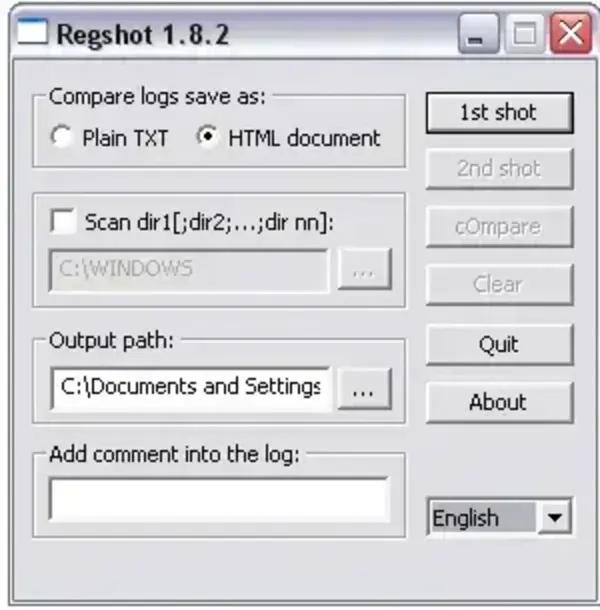
Regshot is especially useful when you want to investigate what an installer or application changes during setup. Rather than watching every registry operation as it happens, it records the system state at two points in time. The comparison highlights differences between those snapshots, giving you a report to inspect.
You can take a registry snapshot on its own or save it as a hive file for later comparison. The optional directory scan can include one or more folders and their subfolders. This can help reveal files created or modified by a setup program, although it is not a complete system-wide file monitor.
What Regshot Can Report
- Added registry entries: Keys and values present in the second snapshot but not the first.
- Changed registry entries: Existing values whose recorded data differs between snapshots.
- Removed registry entries: Keys or values present in the first snapshot but missing from the second.
- Folder changes: Files detected in directories selected for the optional scan.
- Comparison reports: Save the differences as a text or HTML report for later review.
- Saved snapshots: Store a snapshot in a hive file and load it again for a later comparison.
The report shows differences, not their meaning. A changed value is not automatically a problem, and a large report can include routine Windows activity unrelated to the program you are investigating.
How to Compare Registry Changes with Regshot
- Close unrelated applications and allow Windows to finish pending updates or background tasks where practical.
- Open Regshot and take the first snapshot before installing or launching the software you want to examine.
- If you also want to check files, enable the directory scan and enter the specific folders to include.
- Install the program or perform the actions you want to investigate. Keep the test activity focused so the report is easier to interpret.
- Return to Regshot and take the second snapshot after the test is complete.
- Choose text or HTML as the report format, add a short comment if useful, and run Compare.
- Review the differences and save the report if you need to document the results.
For a cleaner comparison, avoid unrelated system changes between the two snapshots. Background services, automatic updates, browser activity, and other applications can all change the Registry or selected folders and add noise to the report. If you are testing unfamiliar software, use a virtual machine or other isolated test environment rather than experimenting on a computer that contains important data.
Understanding the Results and Limitations
Regshot is a comparison tool, not a cleanup or rollback utility. It does not decide whether a registry entry is safe, remove unwanted changes, or restore Windows to its earlier state. Do not delete entries simply because they appear in the report. Research unfamiliar changes and make a separate backup before editing the Registry.
The optional directory scan is limited to the folders you specify. It does not mean that Regshot has monitored every file on every drive. A comparison also reflects only the two snapshots: changes that occur and are reversed between them may not appear in the final difference list.
Reports can contain usernames, software names, folder paths, device information, and other details about your computer. Treat them as potentially sensitive. Review a report before sharing it, and avoid posting unedited logs publicly.
Portable Edition, Builds, and Compatibility
Regshot is distributed as a standalone utility, and the PortableApps.com package is designed to run from a removable drive. The project's 1.9.0 release notes identify 32-bit and 64-bit builds as well as ANSI and Unicode variants. Choose a build appropriate for the system and be aware that ANSI and Unicode saved snapshot files are not interchangeable in every case.
The latest stable release listed by the project's SourceForge files is version 1.9.0, dated February 2, 2013. Although portable packages may run on newer Windows systems, the age of the stable release means compatibility should be tested rather than assumed.
Regshot Specifications and Download
- Developer: Regshot Team
- Latest stable release listed: 1.9.0 (February 2, 2013)
- License: Open source (GNU GPL)
- Platform: Windows
- Package: PortableApps.com package; standalone project builds also available
- Builds: 32-bit and 64-bit, including ANSI and Unicode variants
- Comparison: Registry snapshots and optional selected-folder scans
- Report formats: Text and HTML
- Official project: Regshot on SourceForge
- Portable download: Download Regshot Portable
- Editor's Rating: ★★★★☆ (4/5)
Frequently Asked Questions
Does Regshot monitor Registry changes in real time?
No. It takes snapshots when you request them and compares the two states. It does not continuously record every Registry operation between snapshots.
Can Regshot compare files as well as Registry entries?
Yes. You can enable the directory scan and specify folders to include. Regshot checks those selected locations and their subfolders for differences; it does not automatically monitor the entire drive.
Can Regshot undo changes made by an installer?
No. It produces a report showing detected differences. It does not automatically reverse changes or determine which entries can safely be removed.
Why does my comparison report contain so many unrelated changes?
Windows and background applications may continue changing settings and files while you work. Close unnecessary programs, limit the test to one application, and avoid unrelated activity between snapshots to reduce noise.
Is Regshot suitable for checking whether an application is portable?
It can help identify some Registry and folder changes made when an application runs, but a two-snapshot comparison is not a complete portability test. Test in a clean or isolated environment and check other locations and behaviors before concluding that an application leaves no traces.
Is Regshot Still Useful?
Regshot remains a practical way to create a before-and-after record of Registry changes, particularly when troubleshooting an installer or documenting what a program modifies. Its selected-folder scan and text or HTML reports add useful context without requiring a complex monitoring setup. The important distinction is that Regshot reports differences rather than explaining or reversing them. Because the stable release is old, test it on your Windows version and treat the output as evidence to investigate, not a list of changes to delete automatically.