CurrPorts - Portable TCP IP UDP Port Monitor
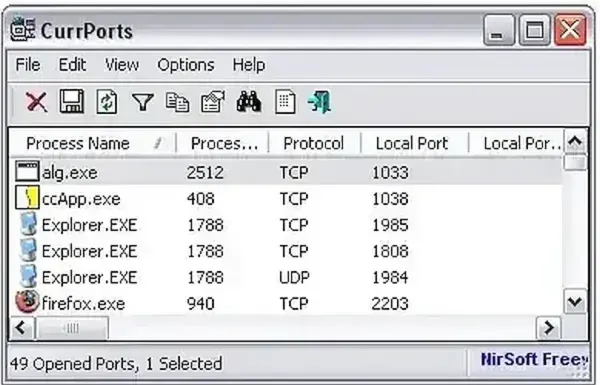
CurrPorts is a portable NirSoft network utility that displays the TCP and UDP ports currently open on a Windows computer. For each entry, it identifies the process that opened the port and can show its executable path, version information, process creation time, user account, local and remote addresses, and connection state. This makes it useful for investigating which applications are listening for connections or communicating with remote hosts.
The current version is CurrPorts 2.80, released July 27, 2026. This release adds a Process Command-Line column, which shows the full command line used to start each process. NirSoft notes that you must run the utility as Administrator to retrieve command-line information for all processes, and use the 64-bit build on 64-bit Windows. The program is a standalone executable and does not require installation or additional DLL files.
CurrPorts can close selected TCP connections and terminate the process that owns a port. These actions can interrupt applications or system services, so identify the process before changing anything. A port marked as belonging to an unidentified application is only a prompt for investigation, not proof of malware.
CurrPorts: Portable TCP and UDP Port Monitor
CurrPorts Features
- Open port monitoring: Display currently opened TCP and UDP ports on the local Windows computer.
- Process identification: Show the process name, executable path, version details, creation time, and owning user.
- Command-line details: Version 2.80 adds the process command line; run as Administrator and use the 64-bit build on 64-bit Windows to retrieve information for all processes.
- Connection state: Display listening, established, closed, and other available connection states.
- Automatic refresh: Refresh the port list at configurable intervals and highlight newly added or modified entries.
- Advanced filters: Filter by process name, local or remote address, protocol, and port range.
- Connection control: Close selected TCP connections or terminate the process that opened a port.
- Export reports: Save port information to HTML, XML, CSV, or text-based formats.
- Change logging: Record newly opened and removed connections in a log file.
- IP location data: Load compatible IPv4 and IPv6 CSV databases to display country, city, or ASN information for remote addresses.
- Portable executable: Run CurrPorts from a folder or USB drive without installation or additional DLL files.
How to Monitor Open Network Ports
- Download the appropriate CurrPorts ZIP package from NirSoft. Use the 64-bit download on a 64-bit Windows system.
- Extract the archive to a folder on your PC or USB drive.
- Run
cports.exe. For complete process details, use Run as administrator. - Review the local and remote addresses, port numbers, protocol, connection state, and process information.
- Use the Options menu to filter the display, enable automatic refresh, or highlight new and modified connections.
- Select entries and export the results if you need to document the current network state.
CurrPorts displays both listening ports and active connections. A listening port means an application is waiting for incoming connections; an established connection generally indicates an active TCP session. A port being open does not automatically mean it is exposed to the public internet. Router configuration, Windows Firewall rules, network address translation, and the address on which the application listens all affect reachability.
Understanding Highlighted and Unidentified Ports
CurrPorts can mark ports belonging to applications without version information or an application icon. This helps draw attention to processes that may deserve inspection, but it is not a malware verdict. Legitimate programs, including some database servers and command-line tools, may not include version resources or icons.
If you see an unfamiliar process, check its full path, publisher, digital signature, command line, and network behavior. Search for the executable name only after verifying its location. Do not terminate a process simply because its port is highlighted; doing so can interrupt legitimate software or Windows services.
Closing Connections and Terminating Processes
CurrPorts includes options to close selected TCP connections and terminate the process that owns a port. Closing a connection can interrupt a download, remote session, or application request. Terminating a process can cause unsaved work or service interruptions. Use these controls only when you understand what the process does and have permission to administer the computer.
CurrPorts is primarily a connection and port overview tool. NirSoft recommends LiveTcpUdpWatch when you need a more focused view of live TCP and UDP activity.
Version and Windows Compatibility
CurrPorts 2.80 was released July 27, 2026. NirSoft's system requirements list Windows NT through Windows 10, including Windows 8 and earlier server releases, and provide a separate 64-bit download. Windows 11 is not explicitly listed in the requirements, so test compatibility on Windows 11 rather than assuming official support.
One documented limitation concerns the Use DNS Cache For Host Names option. NirSoft warns that enabling it can cause significant memory growth during repeated refreshes because of a Windows DNS cache interface issue. If you leave CurrPorts running with automatic refresh for long periods, disable that option.
Specifications and Download
- Current version: 2.80.
- Release date: July 27, 2026.
- Developer: Nir Sofer (NirSoft).
- License: Freeware.
- Supported Windows listed by developer: Windows NT through Windows 10; separate 64-bit package available.
- Portable use: Standalone executable; no installation or additional DLL files required.
- Editor's Rating: ★★★★☆ (4/5)
- Official project page: CurrPorts.
- Download: Download CurrPorts 32-bit or Download CurrPorts 64-bit.
- Related utility: LiveTcpUdpWatch.
Final Thoughts
CurrPorts provides a compact way to see which processes are using network ports and to export that information for troubleshooting. Its filters, automatic refresh, process details, and TCP connection controls are useful for diagnosing unexpected network activity. Treat highlighted ports as investigation leads rather than proof of a threat, and use connection-closing or process-termination commands with care. Browse our portable network tools category for related utilities.