Recuva is a Windows file-recovery utility from CCleaner that can scan for deleted files on a computer, USB flash drive, memory card, and other rewritable storage. The developer offers a free edition and a paid Professional edition. Recovery is never guaranteed: results depend on the device, filesystem, and whether deleted data has been overwritten.
Recuva File Recovery for Windows
What Can Recuva Recover?
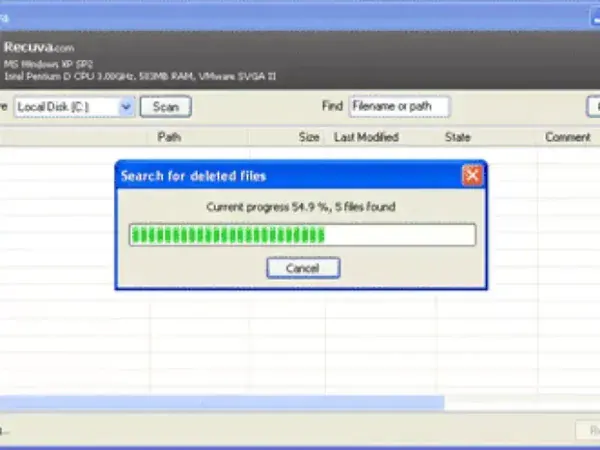
According to the developer, Recuva can search for deleted pictures, music, documents, videos, emails, and other files from Windows computers and supported rewritable media, including memory cards, external drives, and USB sticks. Its Deep Scan mode searches more thoroughly for traces of deleted files, while file filtering can help narrow the results.
A scan result does not guarantee that a file can be restored intact. If the storage space has been reused, the device is failing, or the filesystem is badly damaged, recovery may be incomplete or impossible.
Key Features
- Deleted-file recovery: Scan supported drives and removable media for recoverable files.
- Deep Scan: Search more thoroughly for traces of files that a normal scan may not find.
- File filtering: Narrow results by file type and other available criteria.
- Recovery from some damaged or formatted media: Results depend on the condition of the device and whether data has been overwritten.
- Secure overwrite: The product also offers a feature for overwriting files you want to make harder to recover. Use it carefully; this is permanent deletion, not recovery.
Is Recuva Free?
CCleaner provides a free edition of Recuva for home use. Recuva Professional is paid and adds features including virtual hard drive support, automatic updates, and priority support. Check the official product page for the current edition comparison and license terms.
Download and Compatibility
- Developer: CCleaner (originally developed by Piriform)
- Current version listed by the developer: 1.55.133
- Latest release date shown: June 22, 2026
- Platform: Windows
- License: Free edition and paid Professional edition
- Official download: Recuva download and edition comparison
- Release history: Official Recuva version history
The vendor's current download page lists Windows 10, 8.1, 7, Vista, and XP. It does not list Windows 11 in the Recuva system requirements, so check the developer's current documentation before assuming formal Windows 11 support. The standard download is an installer; this page does not guarantee that every current edition can be run portably from a USB drive.
How to Improve Your Chances of Recovery
- Stop saving files to the affected drive or memory card as soon as you notice the deletion.
- Where possible, download and run recovery software from a different drive to avoid overwriting the lost data.
- Scan the affected device and review the results before attempting recovery.
- Save recovered files to a different physical drive, not back to the device being scanned.
- If the drive is making unusual noises, disconnecting, or showing signs of physical failure, stop repeated scans and consider professional recovery for important data.
SSDs and some removable devices may use TRIM or background cleanup that reduces the chance of recovering deleted data. No software can promise recovery of every file.
Using Recuva as a Portable Tool
Older guides describe extracting the installer and creating a portable.dat file to keep Recuva's settings with the application. That procedure is not confirmed here for the current release, and the developer's standard download is an installer. If you need a recovery tool that runs from removable storage, verify the current package instructions and licensing before relying on an old portable setup method.
Alternatives
Recuva is one option for Windows file recovery. PhotoRec uses a different recovery approach and is worth comparing for your particular filesystem and recovery needs. Check each project's current documentation, supported platforms, and workflow before choosing a tool.
Frequently Asked Questions
Is Recuva completely free?
CCleaner offers a free edition for home use. Professional is a paid edition with additional features and support.
Can Recuva recover files from a USB drive?
The developer lists USB sticks and other rewritable media among supported recovery sources. Success depends on whether the deleted data remains available and has not been overwritten.
Does Recuva work on Windows 11?
The current Recuva download page lists Windows 10, 8.1, 7, Vista, and XP in its system requirements, but does not list Windows 11. Check the developer's latest requirements before installing it on Windows 11.
Can I save recovered files back to the same drive?
It is safer to save recovered files to a different physical drive. Writing to the affected device can overwrite other deleted data that may still be recoverable.
Final Thoughts
Recuva remains available from its developer and offers a free way to scan for deleted files on supported Windows storage devices. Use the official download, check the current operating-system requirements, and avoid writing to the affected drive until recovery is complete. Treat portability claims from old guides cautiously unless they are confirmed for the current release.